How to Backup Your Data Properly: A Simple Guide
Hard drives fail. Phones get stolen. Laptops get dropped. Ransomware encrypts entire file systems overnight. Cloud services go down, or occasionally, companies shut down entirely and take your files with them, .
Data loss is not a rare edge case. It happens to regular people constantly. And almost every time it does, the person who lost the data had no backup — because setting one up felt like a task for later.
This guide will get you sorted in under an hour. Here’s the system that actually works.
The 3-2-1 Rule: The Only Backup Strategy You Need to Know
The 3-2-1 rule is the standard that IT professionals and security teams use worldwide. It’s simple:
- 3 copies of your data
- 2 different storage types
- 1 copy stored off-site
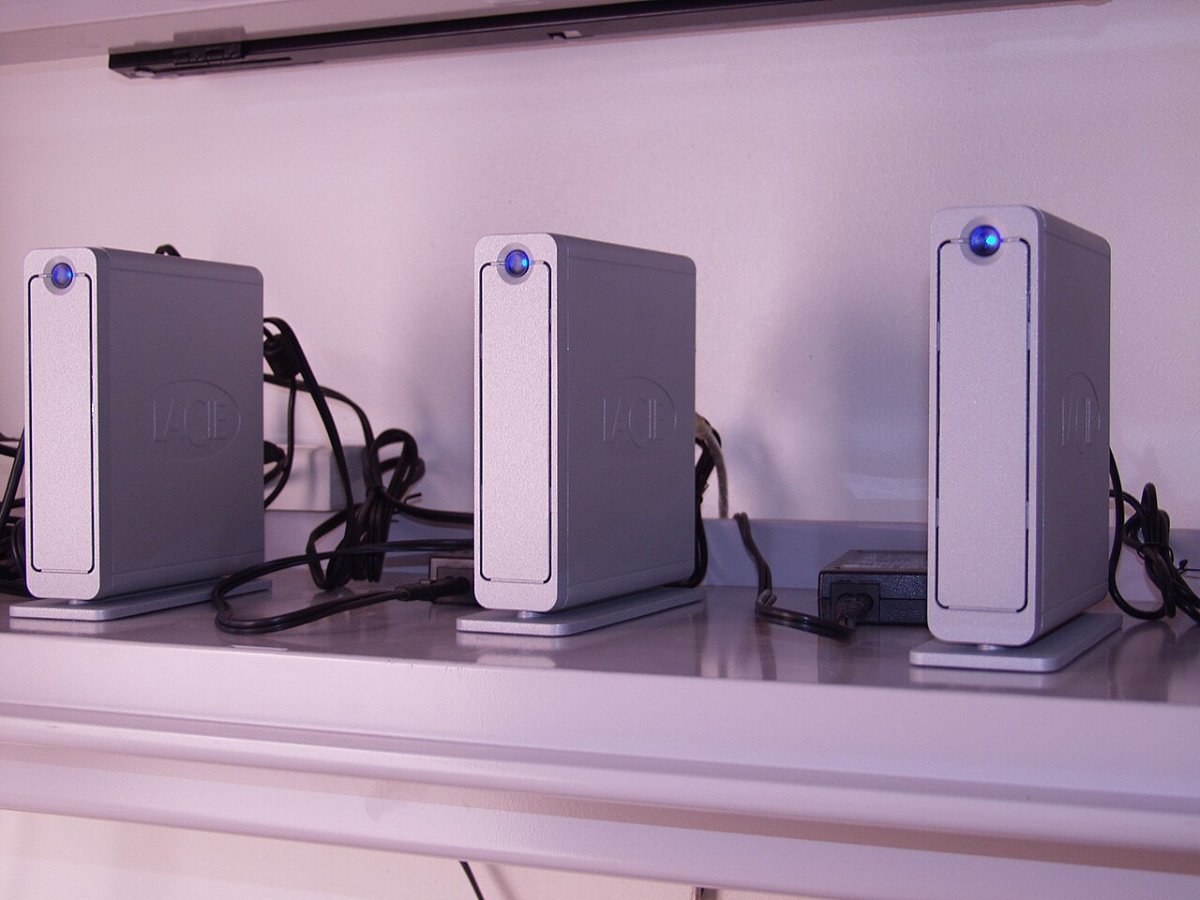
In practice for a regular person, that looks like this: your original files on your computer (copy 1), a backup on an external hard drive at home (copy 2, different storage type), and a backup in the cloud (copy 3, off-site). If your house burns down, your cloud copy survives: If your internet goes out, your external drive works; If your laptop dies, both backups are intact.
You don’t need all three from day one. Start with one backup and build from there. One backup is infinitely better than none.
Backing Up Your Computer
Both Windows and Mac have built-in backup tools that most people never touch.
On Mac: Time Machine is the easiest option. Plug in an external hard drive, go to System Settings → General → Time Machine, and select your drive. Time Machine automatically backs up your entire Mac every hour, keeping hourly backups for the past 24 hours, daily backups for the past month, and weekly backups for everything before that. Set it up once and forget about it.
On Windows: File History serves a similar purpose. Go to Settings → System → Storage → Advanced Storage Settings → Backup Options, connect an external drive, and turn it on. For a full system image backup — which lets you restore your entire PC, not just files — use the built-in Windows Backup and Restore tool under Control Panel.
External hard drives are inexpensive. A 2TB drive costs around $50–$70 and is enough for most people’s entire digital life. Buy one. Plug it in. Turn on automatic backups. That’s most of the work done.
Backing Up Your Phone
Your phone holds years of photos, messages, and contacts. Losing it without a backup means losing all of that permanently.
iPhone: iCloud Backup handles this automatically when your phone is plugged in, connected to Wi-Fi, and locked. Go to Settings → [your name] → iCloud → iCloud Backup and make sure it’s turned on. The free iCloud tier gives you 5GB — almost certainly not enough. 50GB costs around $0.99 per month and covers most people comfortably.
Android: Google One backup works similarly. Go to Settings → System → Backup and make sure Google One Backup is enabled. Google provides 15GB free, shared across Gmail, Drive, and Photos, which covers most users without needing a paid plan.
For photos specifically — which are usually the most irreplaceable files on any phone — Google Photos automatically backs up every image you take, across both iPhone and Android. It’s one of the most reliable free backup tools available and worth enabling regardless of which cloud service you use for everything else.
Cloud Backup for Your Computer Files
For your most important documents — work files, financial records, photos, creative projects — a cloud backup adds the off-site redundancy that completes the 3-2-1 rule.
OneDrive (built into Windows), iCloud Drive (built into Mac), and Google Drive all sync your files to the cloud automatically as long as you put them in the right folder. For most people, this is the easiest path: move your important files into your OneDrive or Google Drive folder, and they’re automatically backed up online.
For a more comprehensive cloud back up — one that covers your entire hard drive rather than just selected folders — Backblaze is the gold standard for consumers. It backs up your entire computer to the cloud continuously for around $9 per month. If your laptop is stolen or destroyed, you can restore every single file. For the peace of mind it provides, it’s one of the best value tech subscriptions available.
The One Thing Most People Skip: Testing Your Backup
A back up you’ve never tested is a backup you can’t trust. Backups fail. Drives corrupt. Cloud services have sync errors. The only way to know your backup actually works is to restore something from it.
Once a month, pick a random file — a photo, a document, anything — and restore it from your backup. Not just check that it’s there. Actually restore it and open it. This takes two minutes and gives you genuine confidence that your system works.
The Bottom Line
The best backup is the one that runs automatically without you thinking about it. Set up Time Machine or File History with an external drive. Turn on cloud sync for your important folders. Enable phone backup. Then test it once a month.
Do this today. The version of you who needs a backup one day will be very glad you did. For more on protecting your digital life, see our guide on how to secure your accounts and data in 2026.
Read more tech related articles here.