
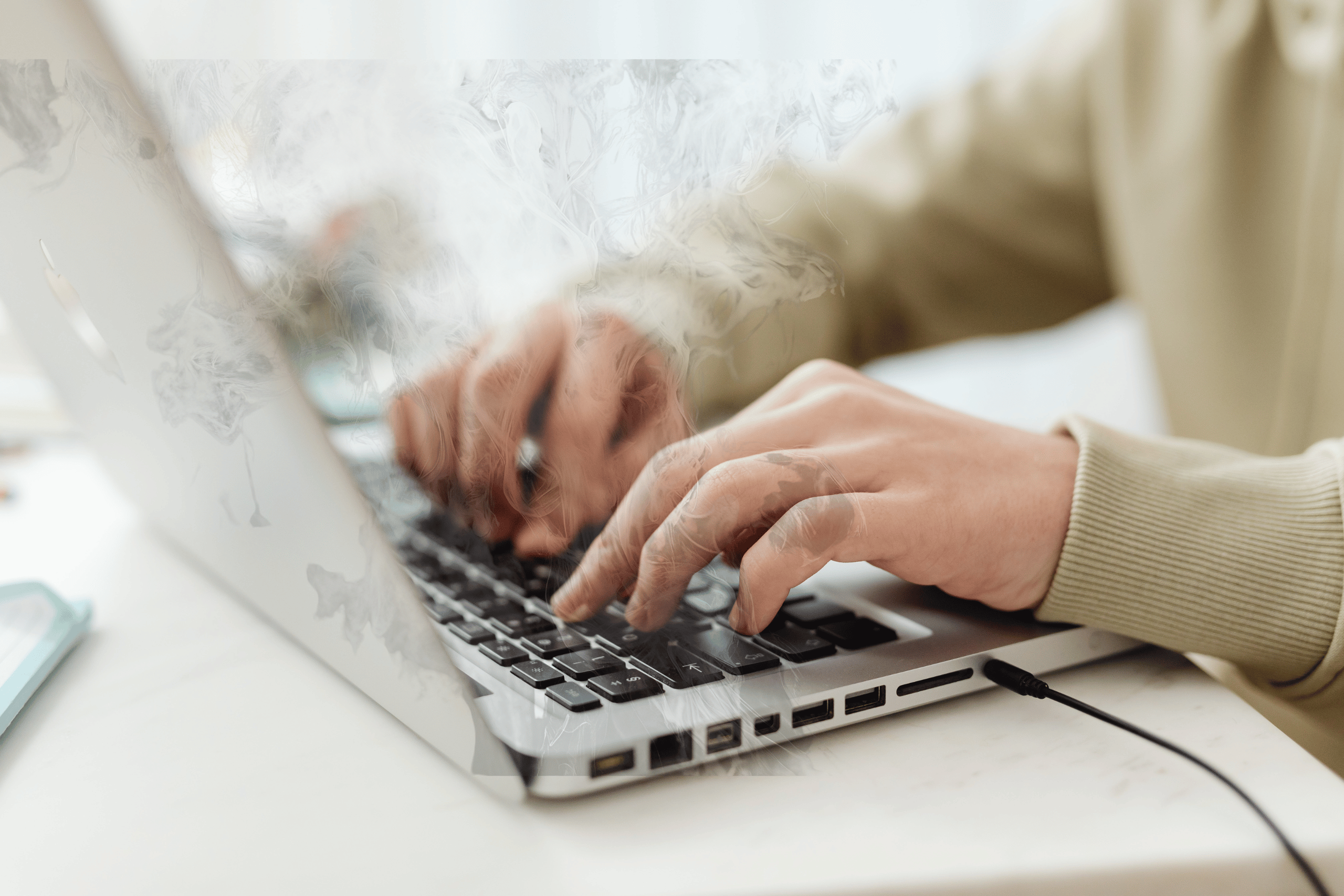
Signs Your Laptop Might Be Overheating
Ever noticed your laptop fan sounding like a jet engine or the device feeling too hot to touch? These are classic signs of overheating—a common issue that can lead to sluggish performance, system crashes, or even permanent hardware damage.
- Performance issues: Lagging, freezing, or the dreaded Blue Screen of Death (BSOD).
- Unusual fan noise: Constant loud whirring from the internal fan(s).
- Unexpected shutdowns: Laptop powering off during use for no apparent reason.
- Warm or hot surfaces: Especially near the keyboard or underneath the chassis.
Why Do Laptops Overheat?
Laptops are compact by design, which means limited space for airflow and cooling components. Several factors can contribute to overheating:
- Dust buildup: Over time, dust can clog vents and fans, blocking airflow.
- Heavy usage: Running demanding apps or games taxes the CPU and GPU.
- Poor ventilation: Using your laptop on soft surfaces like beds or couches restricts airflow underneath.
- Old thermal paste: Thermal paste between the CPU/GPU and heat sink may degrade over time.
What to Do if Your Laptop Is Overheating
Don’t panic—there are practical, effective steps you can take to cool things down:
1. Clean the Vents and Fans
Use a can of compressed air to gently blow out dust from the cooling vents. Make sure your laptop is turned off and unplugged first. You can also open the laptop to clean internal fans more thoroughly (only if your warranty and technical skills allow).
2. Use a Cooling Pad
Laptop cooling pads are external devices that increase airflow under your machine. They’re affordable and plug into a USB port—an easy fix for temperature troubles.
3. Keep It on Hard Surfaces
Always place your laptop on a solid, flat surface like a desk. This ensures proper ventilation and avoids blocking any bottom vents.
4. Close Unnecessary Programs
Take a look at your Task Manager (Windows) or Activity Monitor (macOS) to see what’s running. Close any software you don’t need, especially resource-hungry applications.
5. Update Drivers and BIOS
Outdated drivers—especially for graphics and system firmware—can contribute to overheating by failing to manage hardware efficiently. Visit your manufacturer’s website to download the latest versions.
6. Repaste the Thermal Compound
For advanced users, replacing the thermal paste between the CPU/GPU and heat sink can significantly improve heat transfer. This is best left to professionals if you’re unsure about disassembly.
7. Monitor Temperature Levels
Install monitoring tools like HWMonitor (Windows) or iStat Menus (macOS) to keep tabs on internal temperatures. Aim to keep CPU/GPU temps under 85°C during heavy use.
Preventing Future Overheating
Once you’ve cooled your system down, take some proactive steps to prevent a repeat performance:
- Regular maintenance: Clean vents every couple of months to prevent dust buildup.
- Watch software habits: Avoid running too many demanding programs simultaneously.
- Give it a break: Shut your laptop down when not in use or during long idle periods.
- Invest in laptop stands: Stands with raised cooling designs improve airflow even more than pads.
When to Seek Professional Help
If overheating continues despite your best efforts, it might be time to consult a technician. Persistent issues may point to failing hardware—such as a malfunctioning fan or a compromised heat sink—that needs expert attention.
Stay Cool, Stay Productive
An overheating laptop isn’t just annoying—it can cut your device’s life short. By staying vigilant and giving it the TLC it deserves, you can keep your machine running smoothly for years. A cool laptop is a happy laptop—and that means a happier, more productive you!
Read more tech related content here.




Leave a Reply