How to Use Passkeys: A Beginner’s Guide to Ditching Passwords
Passwords are hard to remember, easy to reuse and easy to steal. Passkeys offer a safer alternative. At CYBERUK 2026, the UK’s National Cyber Security Centre (NCSC) announced that it will begin recommending passkeys wherever a service supports them, and two-step verification where it does not.
This guide explains what passkeys are and how to use them, step by step.
What Is a Passkey?
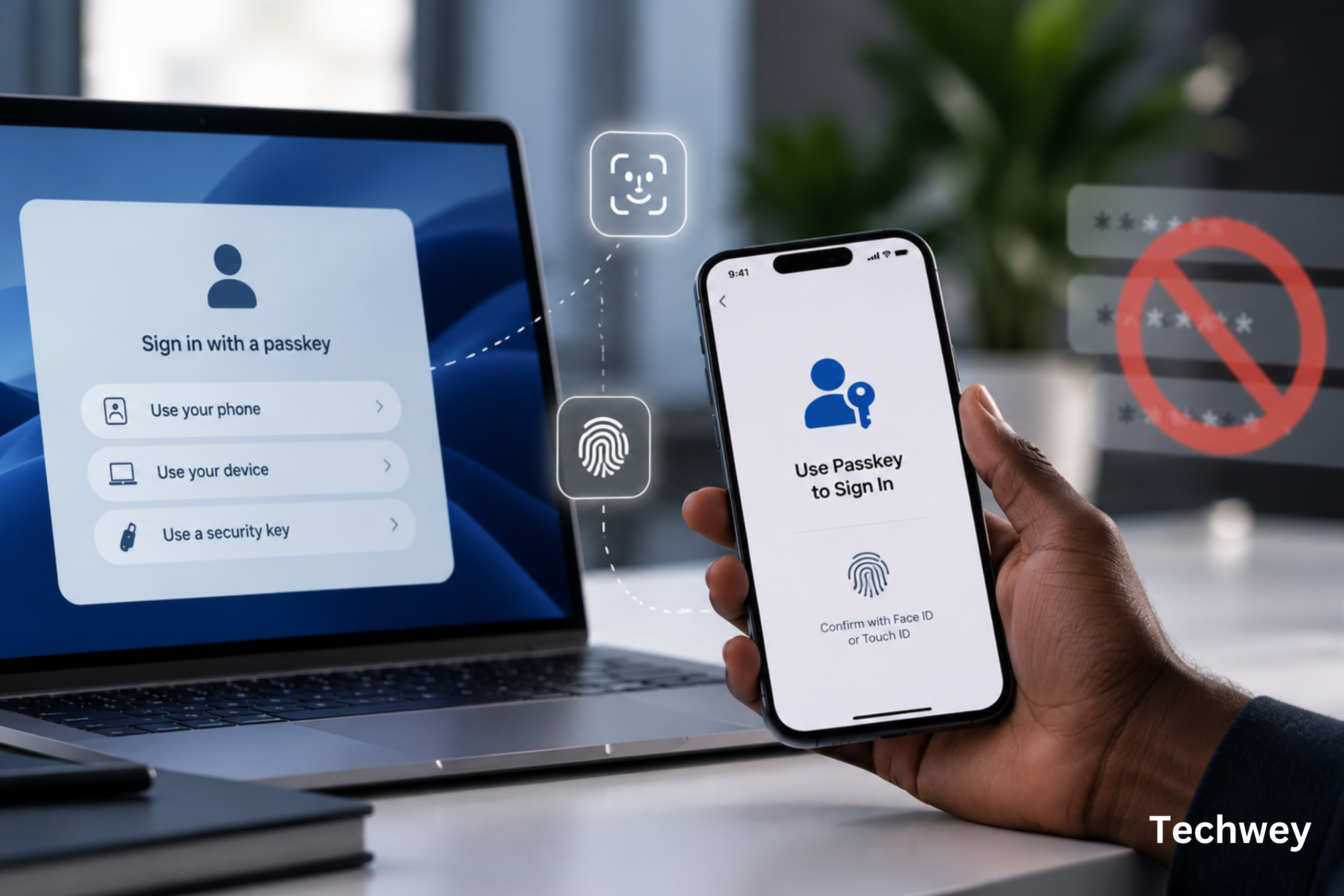
A passkey replaces the password you type with a cryptographic key pair. Cybernews explains that instead of a username and password, a passkey uses two unique keys, and the NCSC calls the technology the future of authentication.
In practice, you approve a sign-in the same way you unlock your device, usually with a fingerprint, your face or your device PIN. There is no password to type, and nothing for a scammer to steal from you.
Why Passkeys Beat Traditional Two-Step Codes
The NCSC compared login methods against the attacks most often seen against individuals, such as phishing, credential reuse and session hijacking. Its assessment is that all traditional multi-factor methods are inherently phishable. That includes SMS codes, email codes, app-generated codes and push approvals.
Passkeys and other FIDO2 credentials are as secure or more secure than traditional multi-factor methods against all common credential attacks, the NCSC says. It also says large-scale attacks aimed directly at correctly implemented passkeys are unlikely, because a fake login page has nothing it can capture and replay.
How to Set Up a Passkey
These steps are our own general guidance. Menus differ between devices and services.
First, update your phone, computer and browser. Second, choose where your passkeys will live. This is usually your device’s built-in credential manager or a reputable password manager. Third, open the security settings of an important account, such as your email, and look for an option called passkey or “sign in with a passkey.” Follow the prompts and approve with your fingerprint, face or PIN.
Finally, test the new sign-in once before you rely on it. Start with your email and main social accounts, because those are the keys to everything else.
When a Site Does Not Support Passkeys
Many sites do not offer passkeys yet. In that case, CSO Online reports the NCSC’s advice for consumers: use a password manager to create stronger passwords, and keep using two-step verification.
The US agency CISA gives similar advice. Its strong password guidance says passwords should be long, random and unique to each account. A password manager can generate and store them, so you only need to remember one strong password. Protect that main password well, and turn on multi-factor authentication for the manager itself.
Syncing and Recovery
Passkeys can sync across your devices through platform services. The NCSC notes that this is not a new kind of risk, because many people already rely on cloud syncing for password managers and email. The key control is the strength of the sign-in protecting your sync account.
Recovery matters too. The NCSC says services should give users clear ways to manage and remove credentials and to set up recovery options. As CSO Online notes, weak account recovery processes can still introduce risk, so set up recovery carefully and keep it secure.
A Quick Checklist
Switch on passkeys for your email first. Use a password manager for everything else. Keep two-step verification on wherever passkeys are not available. Keep your devices updated, because passkeys depend on the security of your devices and credential managers.
For more on keeping your accounts safe, read our guides on securing your AI accounts, protecting your digital privacy and protecting yourself from AI-powered cyber threats.