Why Software Updates Matter and How to Turn On Automatic Updates
Most of us have tapped “remind me later” on an update alert. The US Cybersecurity and Infrastructure Security Agency (CISA) says that is worth a second thought. Many software updates are created to fix security risks, and keeping software up to date is an easy way to stay safer online.
This guide explains why software updates matter and how to switch on automatic updates so you do not have to think about it.
Why Updates Matter
According to CISA’s update software guidance, technology providers issue updates to patch security weak spots as quickly as they can. Updates can also add features that improve your experience.
A recent example shows how serious this can be. On October 21, PHP released fixes for two critical flaws that could let an attacker run code on a web server without logging in. Wiz Research says every PHP version released in the past decade is affected by at least one flaw, and that applying the update is the only complete fix.
The lesson applies to all of us. When a fix exists, the hole stays open on every device that has not installed it.
What You Should Update
CISA says to install all updates. That includes your devices’ operating systems, programs and apps. It singles out web browsers and antivirus software as especially important.
When you are notified about an update, especially a critical one, CISA says to install it as soon as possible.
Turn On Automatic Updates
Automatic updates make this effortless. CISA explains that with the feature on, your devices install updates without any input from you as soon as they are available.
To switch it on, look in the device’s settings, possibly under Software or Security. If you cannot find it, search the settings for “automatic updates.” CISA also notes that not every update can be automatic, so keep an eye out for notifications.
Automatic updates turn a chore you might skip into something that happens on its own.
How to Do It on iPhone and iPad
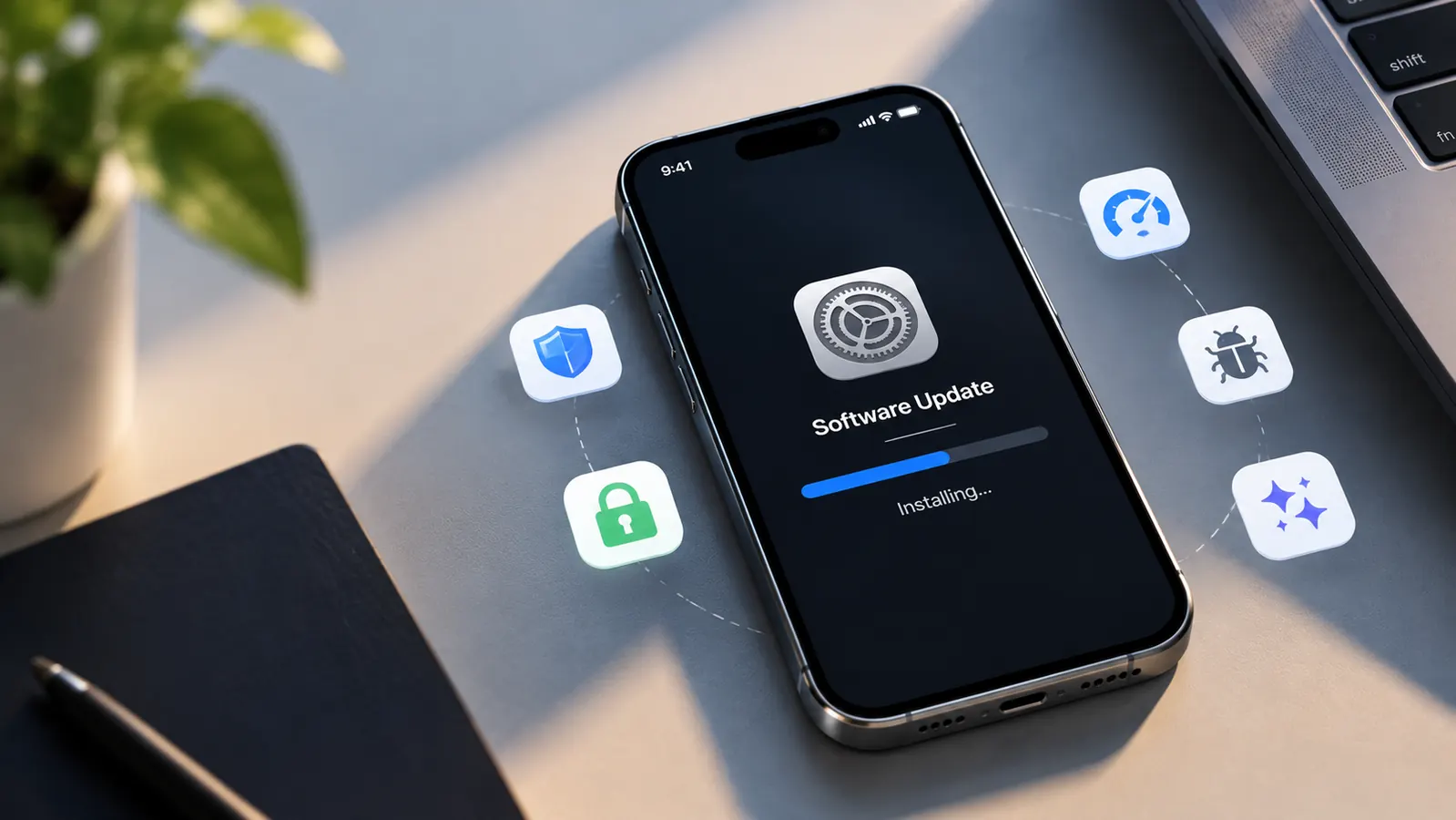
Apple’s guide to updating your iPhone or iPad says the best way to receive new features, security updates and bug fixes is to turn on automatic updates. Go to Settings, tap General, tap Software Update, then tap Automatic Updates.
There are two options. Automatically Install downloads and installs the update overnight while your phone is charging and connected to Wi-Fi, and you are notified before it installs. Automatically Download fetches the update in the background so you can install it later.
Other Devices
This section is our own general advice, because menus differ by brand and software version. On Android, look under Settings for a Software update or System update screen. On Windows, open Settings and look for Windows Update. On a Mac, Apple’s guide says to open System Settings, click General, then Software Update, where you can choose to have updates installed automatically.
Do not forget your apps and browsers. Turn on automatic updates in your app store, and keep your web browser current. Our report on the Chrome 152 update with 327 security fixes shows how much a single browser release can patch.
Before You Update
Apple advises backing up your iPhone before you update, either automatically or manually. That is sensible on any device. Our guide to backing up your data properly explains how.
Also make sure your device has enough battery and storage, and update over Wi-Fi where possible. These last tips are our own.
What If an Update Causes Problems?
Occasionally an update misbehaves. Our report on Microsoft’s broken September Patch Tuesday and the emergency fix is one example. In our view, that is a reason to watch for a follow-up fix, not a reason to stop updating.
The bigger risk is delay. Zero-click spyware, for example, is the kind of threat that updates close, as our report on the iOS 26.6.1 ImageIO patch shows. Install updates promptly, and keep automatic updates switched on.