How to Save Mobile Data on iPhone and Android: 8 Simple Steps
Mobile data costs money, and a plan can disappear faster than you expect. Apps refresh in the background, videos stream in high quality, and cloud services sync without asking.
The good news is that both Apple and Google built tools to help. Here is how to save mobile data on iPhone and Android in eight simple steps.
1. Find Out What Is Using Your Data
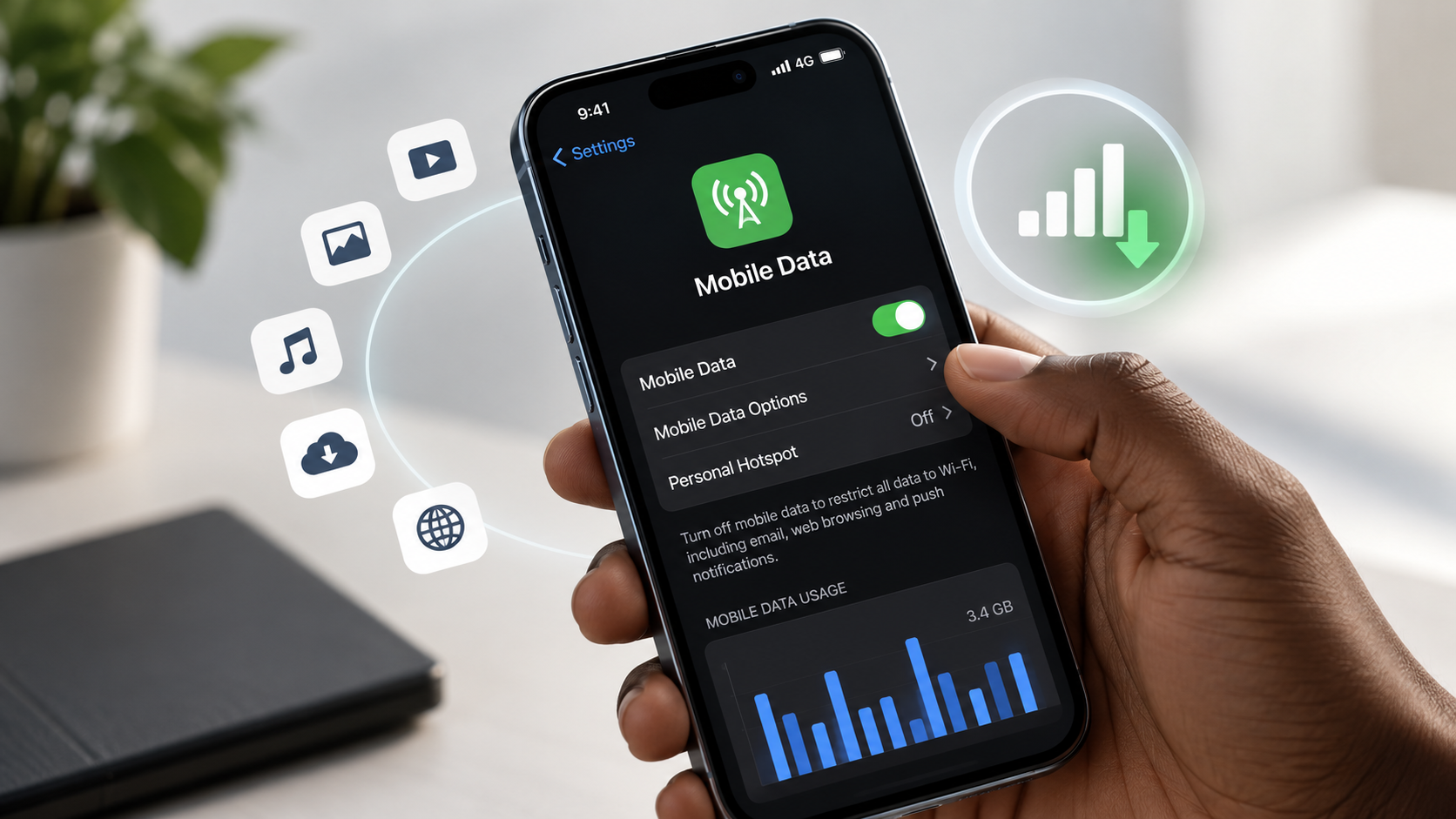
Start by finding the biggest users. On Android, Google’s guide to reducing and managing mobile data usage says you can get graphs and details by tapping App data usage in your network settings. On an iPhone, the Cellular settings screen lists usage by app.
Once you know which apps use the most, you can decide which ones need limits.
2. Turn On Data Saver on Android
Google says Data Saver lets most apps and services get background data only over Wi-Fi, while apps you are actively using can still use mobile data. Open Settings, tap Network and internet, then Data Saver, and switch it on.
Some apps break when they cannot run in the background. For those, use the Unrestricted data option to let specific apps keep using mobile data. Menus can differ on phones with custom Android versions, so check with the manufacturer if the steps do not match.
3. Turn On Low Data Mode on iPhone
Apple’s Low Data Mode guide explains that, with iOS 13 and later, the feature restricts background network use. In general, it stops apps using network data when you are not actively using them and turns off Background App Refresh.
On LTE or 4G, go to Settings, tap Cellular, then Cellular Data Options, and turn on Low Data Mode. On 5G, tap Cellular Data Options, choose Data Mode, then turn it on. With dual SIM, tap the number you want to change first. Apple notes that the settings might vary depending on your carrier.
4. Set a Data Warning or Limit
On Android, Google says you can turn on a data warning and set a data limit. When the limit is reached, your phone automatically turns off mobile data. To get mobile data back, you switch the limit off again. A limit is useful on a small plan, because it stops surprise overage charges.
5. Turn Off Auto-Sync
Google’s guide says that turning off auto-sync helps you use less data. Syncing email, contacts and cloud files in the background all adds up. You can restrict background data for individual apps, so apps you rarely open stop using data when you are not looking.
6. Use Wi-Fi for the Big Jobs
This step is our own advice. Do large downloads, app updates and cloud backups on Wi-Fi, not mobile data. Download videos and music for offline use while you are on Wi-Fi, and lower video quality when you stream over mobile data.
Take care on public networks, though. Our guide on why you should never use public Wi-Fi without a VPN explains the risks. To schedule safe backups at home, read our guide to backing up your data properly.
7. Switch Off Data Roaming When Traveling
Google’s guide lists a setting to turn data roaming on or off. Roaming can be expensive, so turn it off unless your plan covers it, and rely on Wi-Fi while you are away.
8. Check How Your Carrier Counts Data
Google notes that some carriers measure usage differently from your phone, so the numbers may not match your bill. It also suggests checking that mobile data usage is assigned to one SIM if you use two. Compare your phone’s figures with your carrier’s app or usage page to see which one to trust.
A Quick Checklist
Check which apps use the most data. Turn on Data Saver or Low Data Mode. Set a warning or limit if your phone offers one. Turn off auto-sync for apps you do not need. Keep large jobs for Wi-Fi, and switch off roaming abroad.
A note on Low Data Mode: MacRumors points out that a third-party app must support the feature for it to change that app’s data use. Finally, protect your phone while you save: see our guide to protecting your digital privacy in 2026.